You can change your password on the My Profile page after logging in with your current password.
To change your password:
- Log in with your current password.
- From the top menu bar of the Portal, click My Profile.

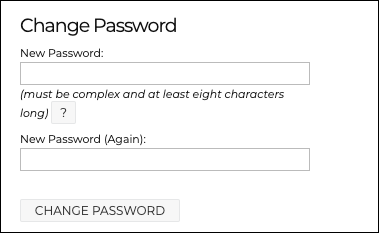
- On the User Profile page, scroll to the bottom to the Change Password section.
- Click ? to view password requirements, or see: Password Requirements
- Enter your new password into the New Password field.
- Re-enter your new password into the New Password (Again) field.
- Click CHANGE PASSWORD.
- When the new password saves successfully, a green banner will display at the top of the User Profile page. Next time you log in, use the new password.
Comments
0 comments
Article is closed for comments.