Upon normal case creation, please ensure the following steps are taken. A Customer Contact is required, along with an email address for estimate authorization.
Service Advisor
- Check in asset with the Quick Action Button Check In.

- Select a recipient from the list.
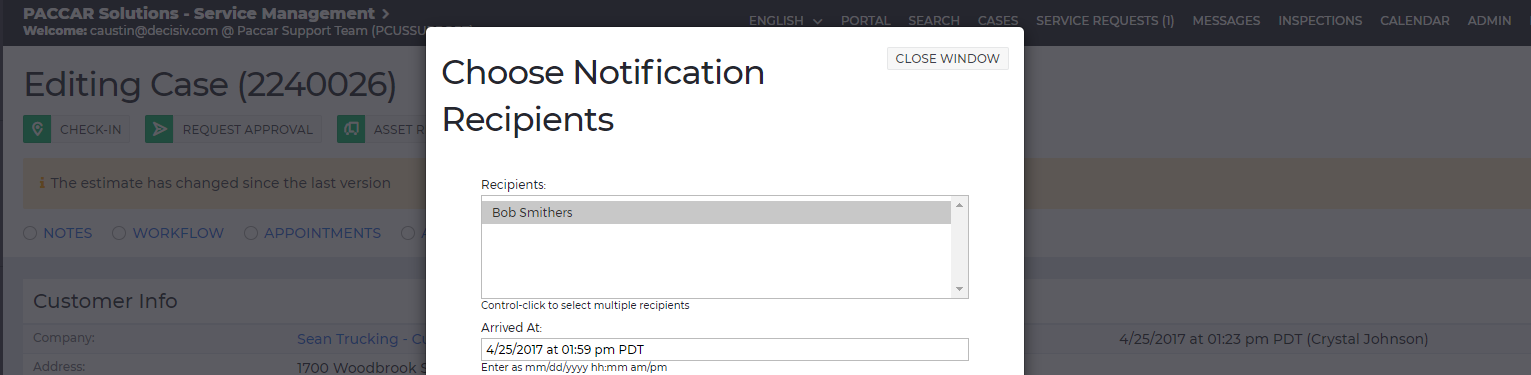
- Enter the arrival time.
- Enter a complaint description.
- Click OK.
- Click Find Operation.

- Enter the operation name in text field and click Search.

- Select the desired operation.
- Click Add Now.
- Enter price code or fixed labor total.
- Click Save & Return to Case.
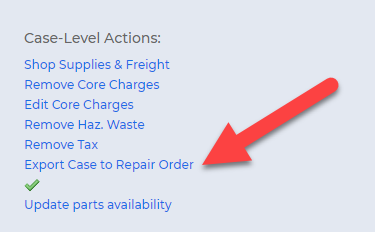
- Click Export Case to Repair Order link to create RO.
- Click Workflow.

- Assign case to technician for diagnosis.
- Click Submit.
Technician
- Go to Find Operation and enter the operation needed for repair.
- Click Search.
- Click on the selected operation.
- Click Add Now.
- Click Workflow.
- If parts are needed, assign to Parts Department to enter parts.
- If parts are not needed, assign to Service Advisor.
Parts Department
- Click on the operation in the case.

- Enter part number needed.
- Click Submit Parts.

- Click Save & Return to Case.
- Click Workflow.
- Assign case to Service Advisor.
- Click Submit.
Service Advisor
- Click Request Approval Quick Action Button.

- Select recipient for estimate approval.
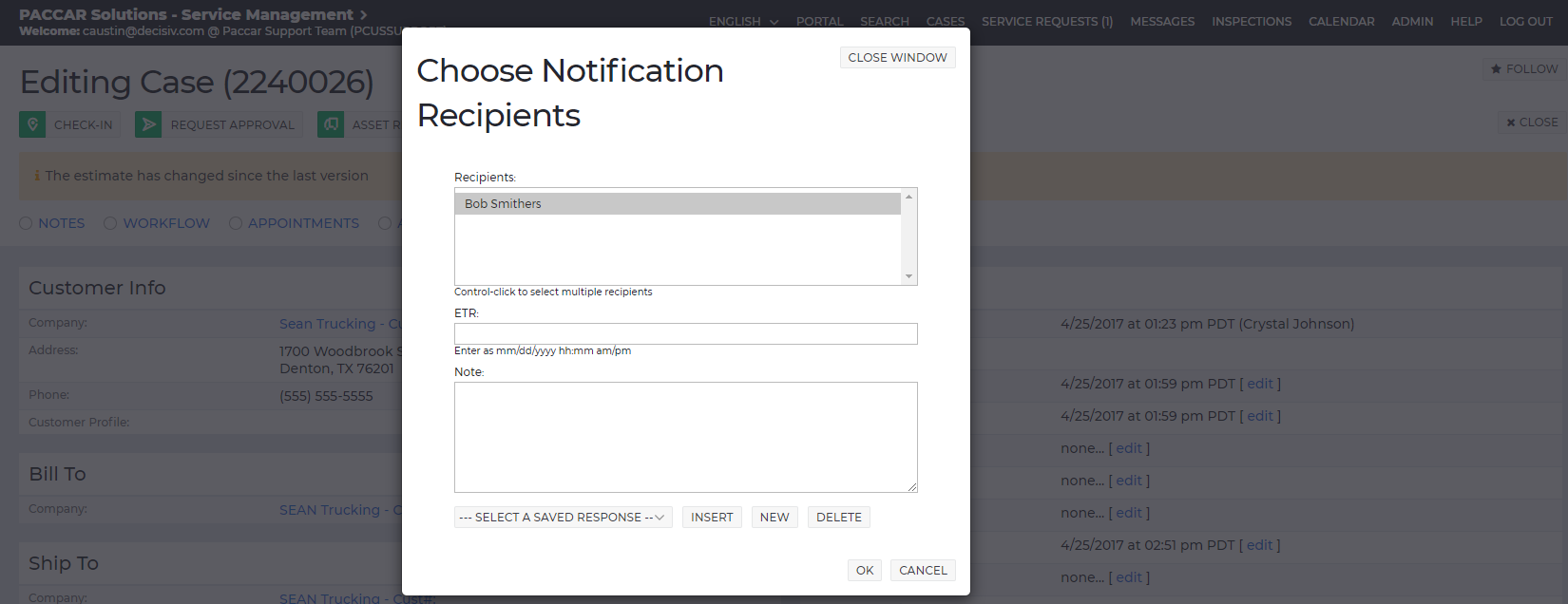
- Enter ETR.
- Enter a note.
- Click OK.
Comments
0 comments
Article is closed for comments.