How Fleet Managers use the app
Three Core Flows:
The fleet experience is organized around three core workflows that guide fleet managers from identifying issues to resolving repairs and preventing delays:
- Flow 1: What needs my immediate attention?
- Flow 2: Repair is stalled. What do I do next?
- Flow 3: Monitor repairs pending approval and resolve any delays.
Purpose & Outcome:
This flow shows how a fleet manager quickly assesses fleet health and identifies the highest-priority assets that require immediate attention.
By the end of this flow, you will know how to:
- Identify urgent issues across the fleet
- Navigate directly to the assets that need attention
- Turn alerts into actionable service workflows
Flow 1: What needs my immediate attention?
Start on the Home Dashboard:
What to do: Begin your day on the Home Dashboard.
What to look at:
- Total Assets
- Total Depots
- Status tiles that represent active work
This gives you immediate awareness of fleet size and current workload before taking action.
Identify your highest priority work:
What to do: Locate the Assets with Active Alerts. The assets have issues that might require immediate attention.
Active alerts are typically the most time-sensitive and should be reviewed first.
What happens: The Assets page opens with Active Alerts automatically applied.
You are taken directly to the assets that require action, no manual filtering needed.
Review an Asset with an Active Alert:
What to do: Choose an asset from the filtered list.
Review:
- Active Alerts
- Location and Depot
- Maintenance history and warranty
This gives you the full context needed before taking action.
Turn an Alert into a Service Event:
What to do: From the Asset Detail panel, select Create Service Event
This turns an identified issue into an actionable workflow
Complete the Add Service Event Draft:
What is auto-populated:
- Asset information
- Alert context
What to do:
- Choose the Service Location (use the map or provider list)
- Add appointment date
- Add contact details
- Add or edit complaint details
- Add a PO Number if required by the Service Provider
- Add internal notes if needed (fleet-only)
The system handles setup while allowing you to add critical context without risk of losing work.
Send the Service Request:
What happens next:
- The Service Request is sent to the selected provider
- Once accepted, the Service Event moves to In Progress
- A Case is created automatically
A single action moves the repair forward without additional steps or duplicate tracking.
Flow 2: Repair is stalled. What do I do next?
Purpose & Outcome:
This flow shows how a fleet manager identifies repairs that are stalled after a Service Request has been sent and takes action to keep work moving forward
By the end of this flow, you will know how to:
- Identify assets with Service Request awaiting dealer acceptance
- Assess whether a stalled repair requires urgent follow-up
- Take action to unblock repairs and document follow-up for the fleet team
Identify stalled Service Requests:
What to do: After addressing high-priority alerts, return to the Home Dashboard.
Locate and select Attempting contact.
What happens: The Assets page opens with the Attempting Contact filters automatically applied.
Until the dealer accepts, the repair is not scheduled, and the asset might be at risk of downtime.
Review the Assets and assess urgency:
What to do: From the Assets page, review:
- Active Alerts
- Work in Progress
Until the dealer accepts, the repair is not scheduled, and the asset might be at risk of downtime.
What to do: From the Assets page, open the linked Service Event and review:
- Complaint
- Timestamp of when the request was sent
- Selected Service Provider
This confirms what was requested and when it was sent
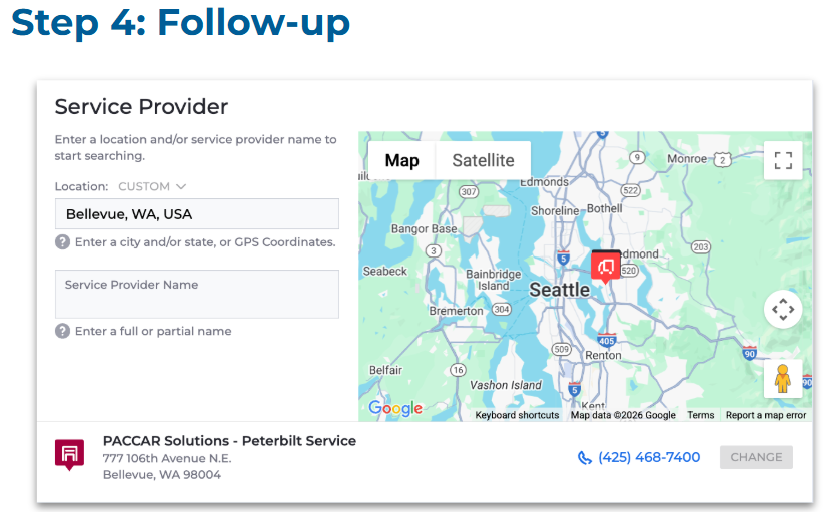
What to do: In the Service Provider panel, review:
- Name
- Phone number
- Location
You can:
- Contact the provider directly to follow up, or
- Cancel and resend to a different provider
All required information is available to take action.
Document the follow-up:
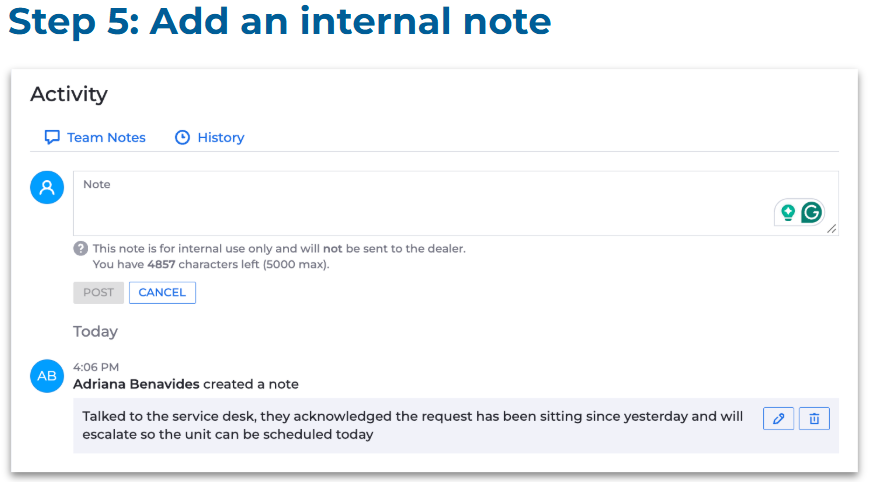
What to do: After contacting the provider, add an internal note to the Service Event.
Important: Internal notes are visible to fleet users only and not shared with the dealer
This keeps the entire fleet team aligned, especially across shifts or handoffs.
Flow 3: Monitor repairs pending approval and resolve any delays
Purpose & Outcome:
This flow shows how a fleet manager identifies repairs that are waiting on estimate approval and takes action to keep work moving forward.
By the end of this flow, you will know how to:
- Identify Service Events that are pending estimate approval
- Review repair details and approval status across the fleet
- Intervene on delayed approvals to prevent repair and downtime delays
Review Estimates pending approval:
What to do: From the Home Dashboard, select Pending Approvals
What happens: You are taken to the Service Events page with filters automatically applied to estimates pending approval
This view focuses on repairs that are waiting for a decision.
Navigate to Service Events:
What you see:
- Asset information
- Service Event status
- Elapsed Time
- Assigned Provider
- Complaint
- Appointment Dates
This gives immediate insight into repair volume, status, and aging across the fleet.
What to do: Sort Service Events by Elapsed Time to identify such repairs that may need intervention
What to do: Select the related Case
What happens: You are taken to the Case, where you can review and approve or decline the estimate.
Comments
0 comments
Please sign in to leave a comment.